Navigating Your Submission
Once inside your submission, select DDQ from the right-hand sidebar to open the DDQ view.
Your original questionnaire appears on the left in its unanswered, native format (e.g., Excel, Word, etc.). Extracted questions appear on the right in the Review Pane, where all Answer Generation, Editing, and Review occurs. Once you press Submit on the intake form, the agent will extract every question from the submitted DDQ/RFP.
Note: The answering of a DDQ/RFP in Norm is user-directed. Question extraction after pressing Submit is the only action the agent takes in the platform without additional user direction. See ensuing section "Answering DDQs / RFPs in Norm Ai" for additional detailed steps on completion.
Along the right side of the review pane, you can navigate between the following tabs:
- Details - submission details and metadata captured in the Intake Form
- Documents - add or manage supporting materials; use the advanced registry search to browse the full document repository
- Audit Log - a complete log of activity on the submission
- Approvals - track the review and completion flow
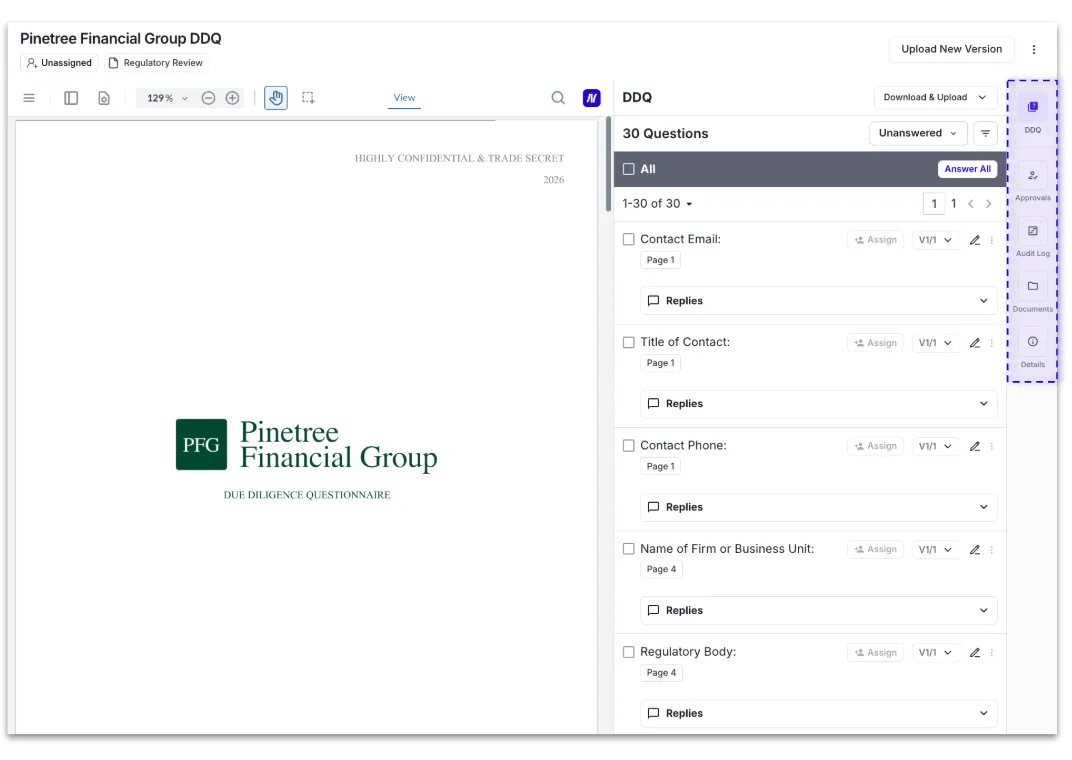
Navigating the DDQ Tab
Select any question in the Review Pane to jump directly to where it appears in the original questionnaire on the left, making it easy to cross-reference the full question context while reviewing or editing your answer.
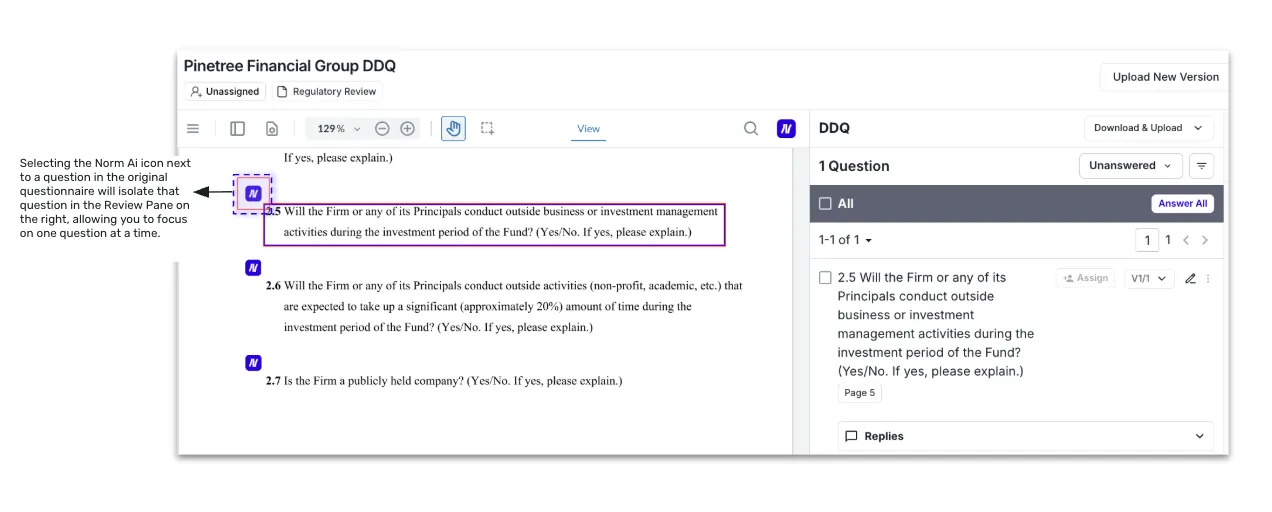
Note: The review pane opens to the Unanswered section by default so users can immediately begin reviewing unanswered questions.