Submitter Guide
Introduction
Norm Ai is an AI-native regulatory platform that converts laws, regulations, and internal policies into purpose-built AI agents. These agents help legal and compliance teams improve consistency and accelerate compliance-critical workflows by reviewing marketing content and flagging potential regulatory risks.
This guide provides step-by-step instructions for Carlyle’s Compliance team on how to submit content to Norm Ai, review AI-generated feedback, and manage revisions within the platform.
Navigating the Norm Platform
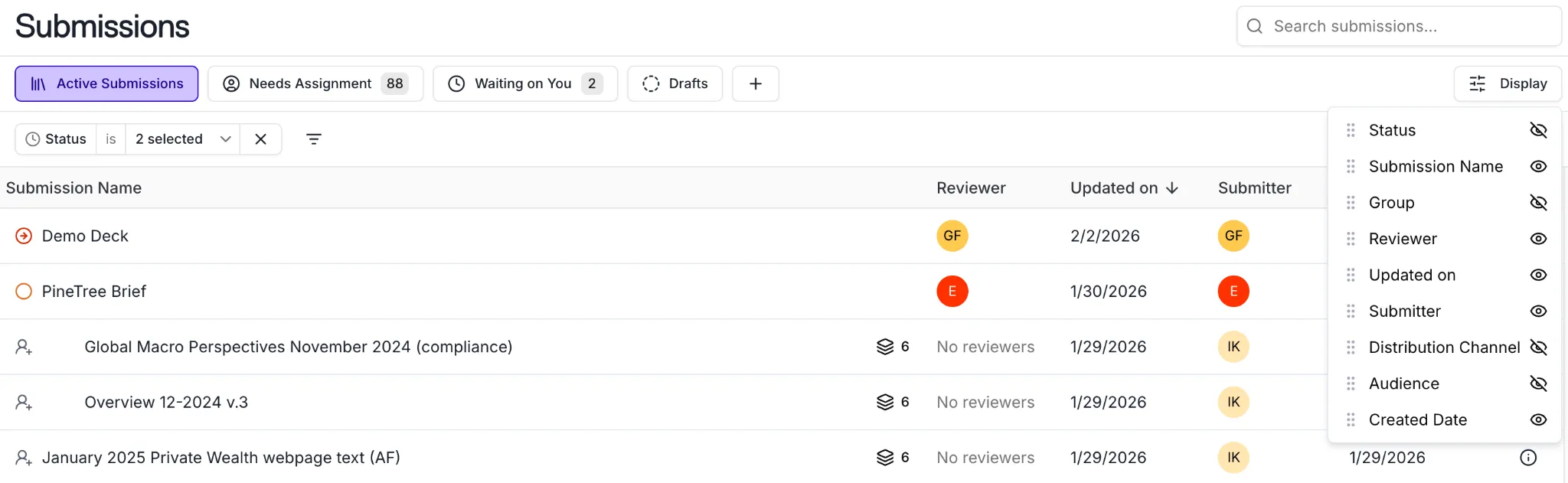
The homepage of Norm shows a dashboard of all active submissions.
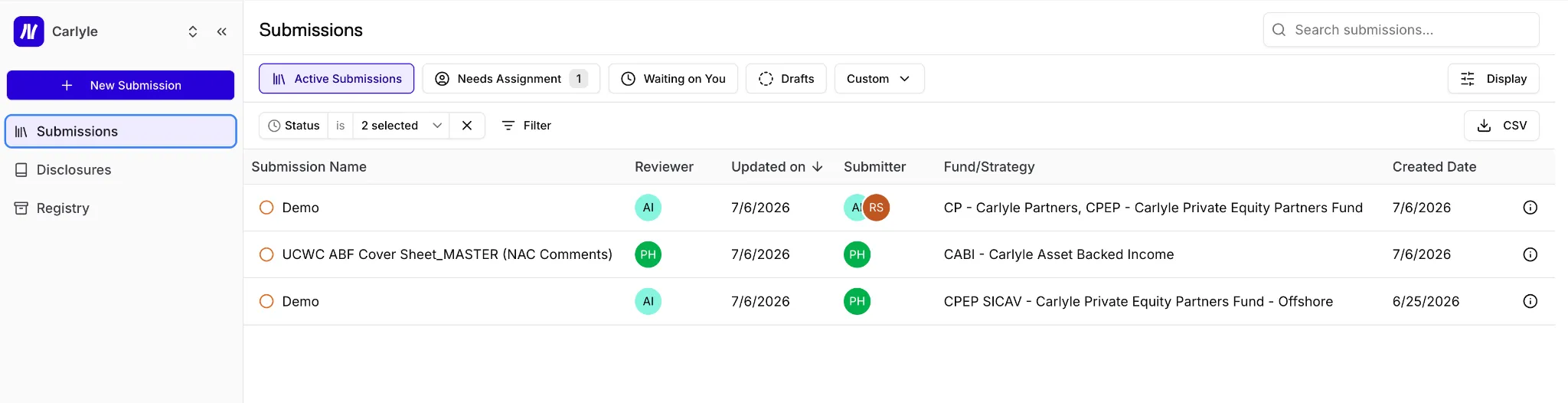
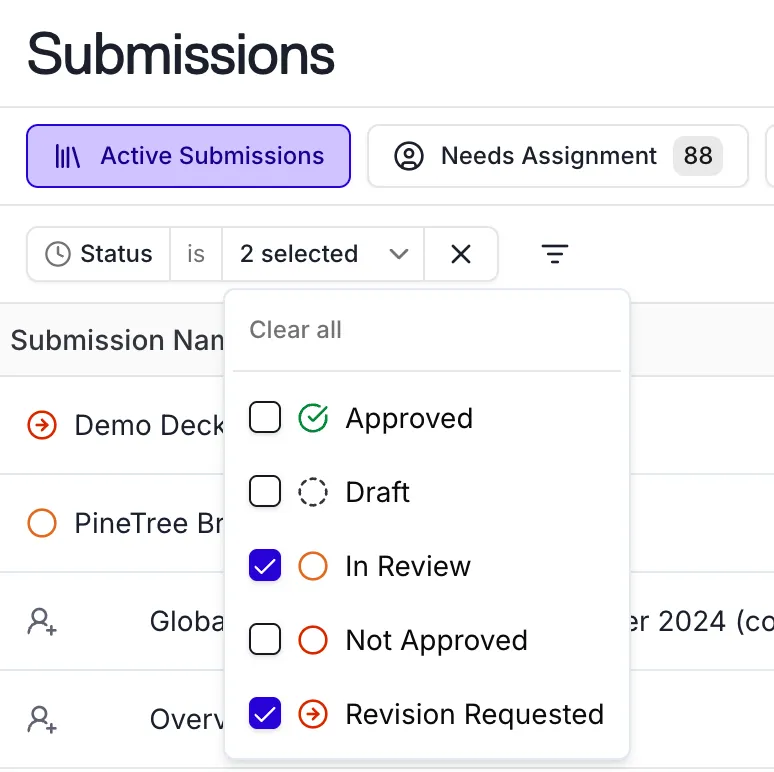
You can filter for submission statuses.
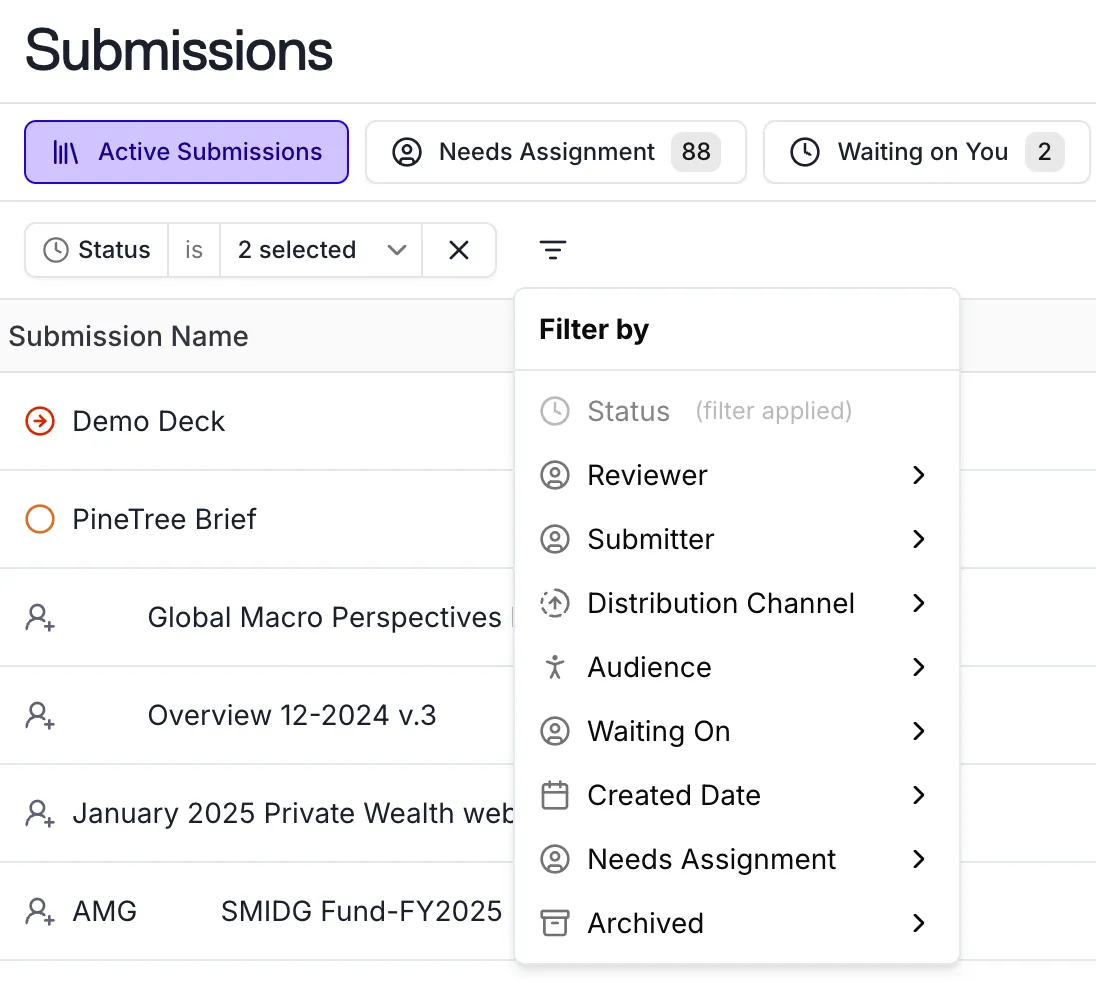
You can also filter for other key fields.
You can customize your Views for quick access to specific filters.

You can also create custom Views with tailored filters per your individual preferences and save the View as your default view for whenever you log into the Norm Ai platform.

You can customize the dashboard and add/remove fields.
Disclosures Tab
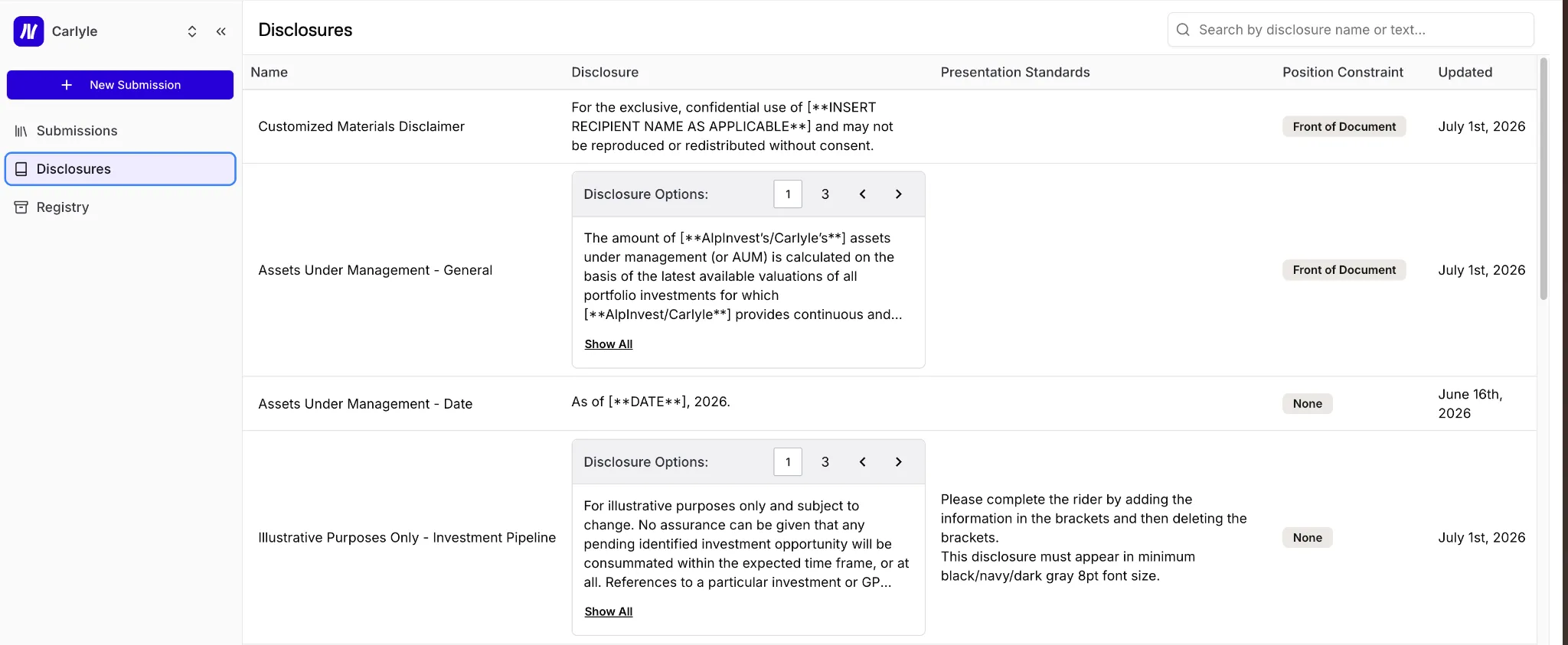
The Disclosures Tab contains all onboarded firm disclosures.
Registry Tab
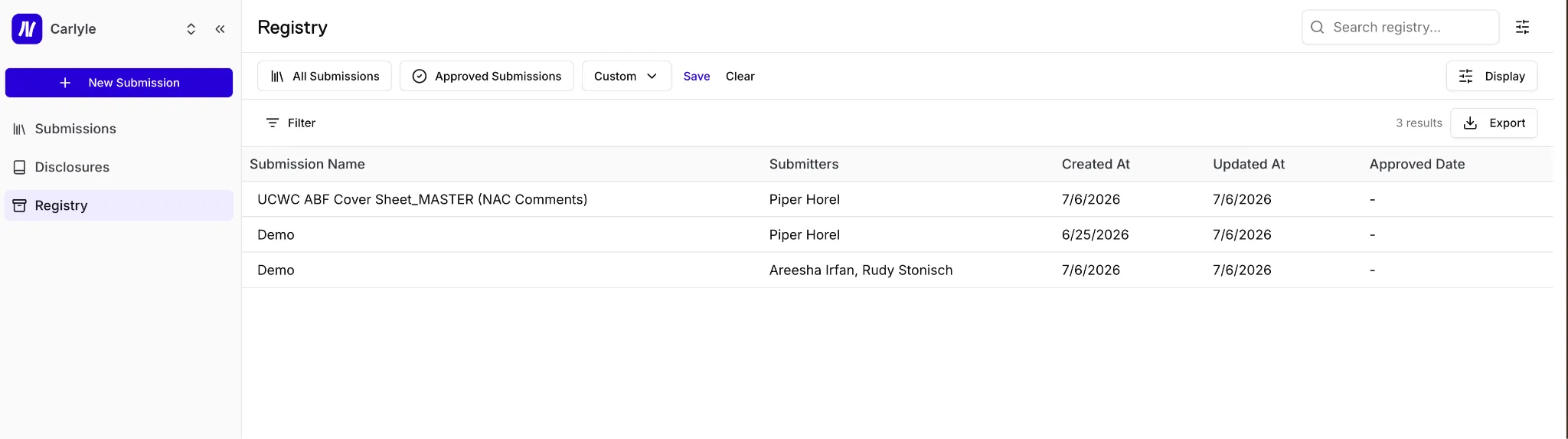
The Registry tab contains all historical submissions and uploaded supporting materials.
Creating a New Submission
To create a new submission in Norm:
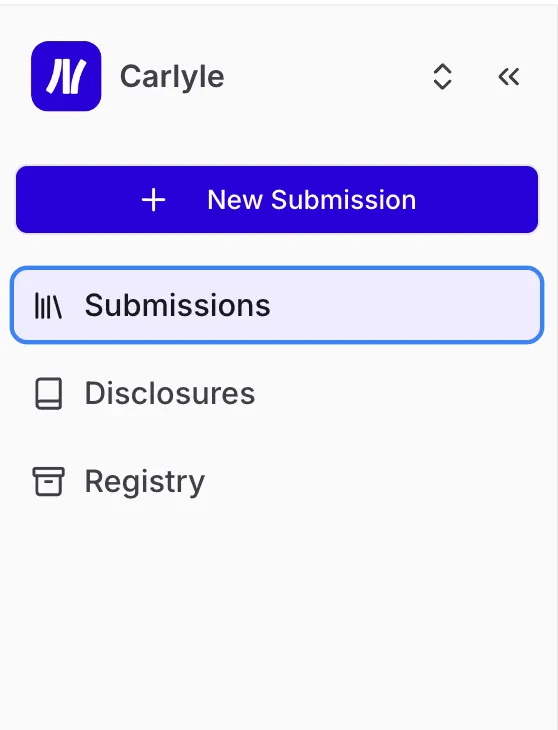
- Click New Submission in the left navigation panel.
Upload Your File
Select a file manually or drag and drop into the upload area.
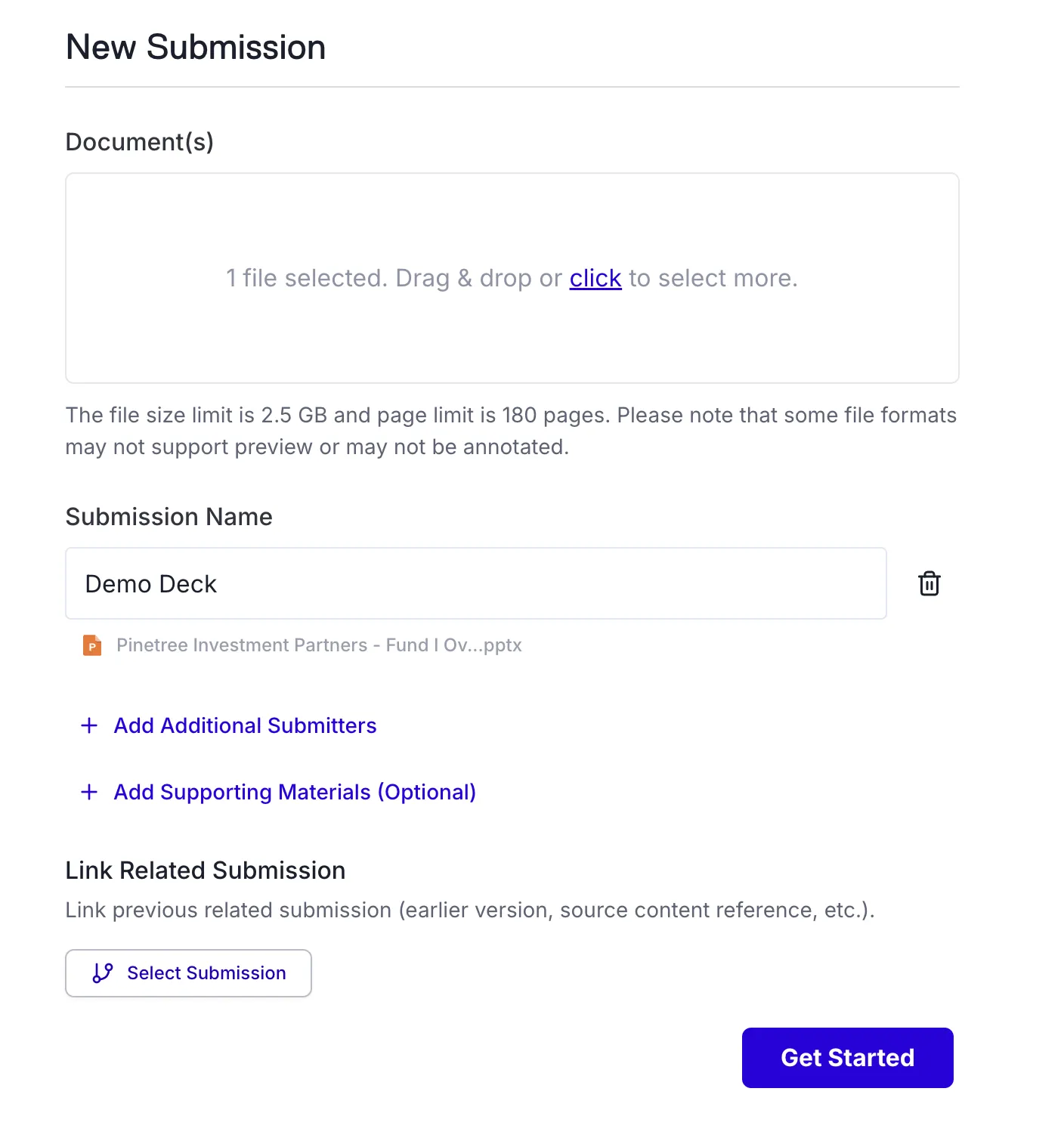
Complete the Submission Form
Go through the submission form and select all the valid fields for your submission.
Submit for Review
Click Submit once all fields are answered. Select “View submission” to view the submission.
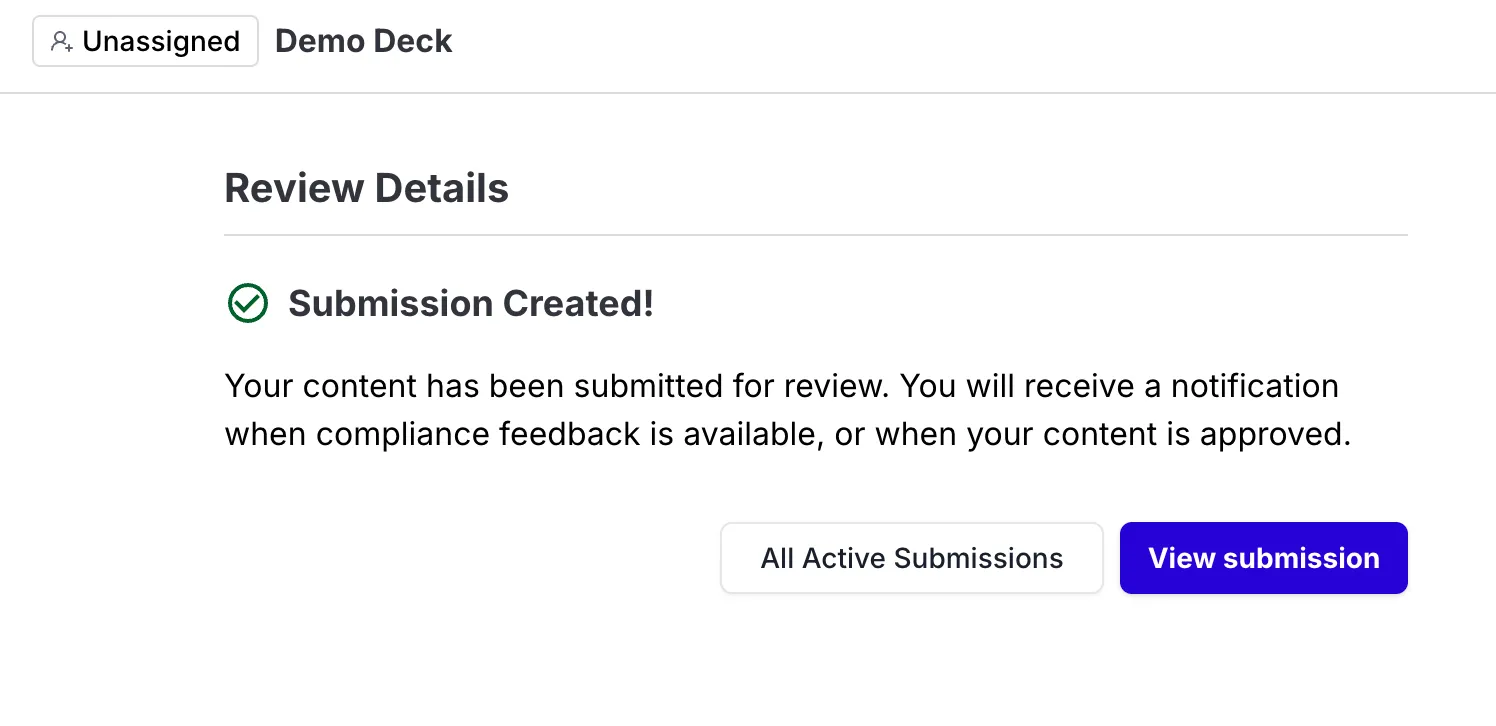
Review Progress on a Submission
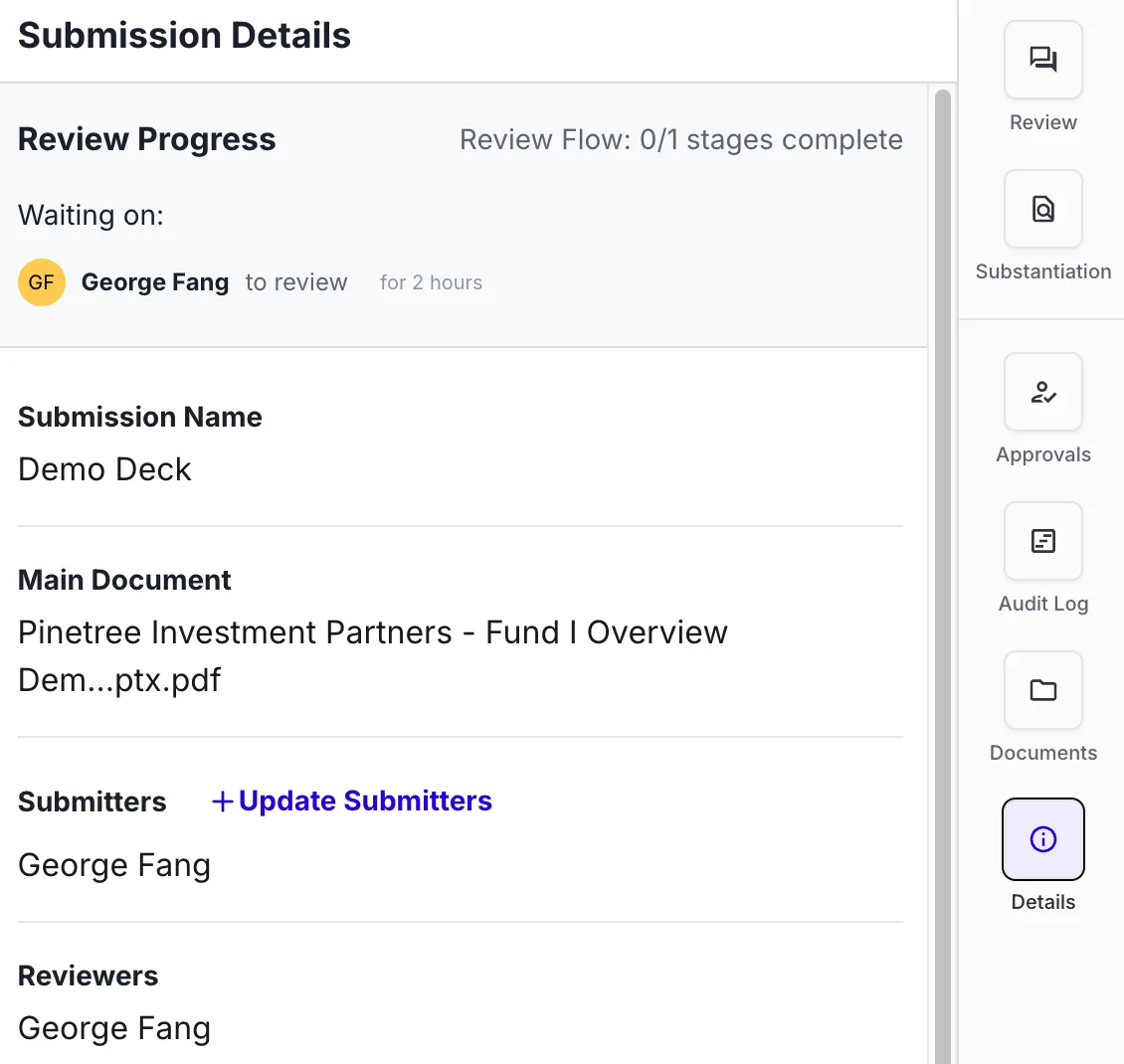
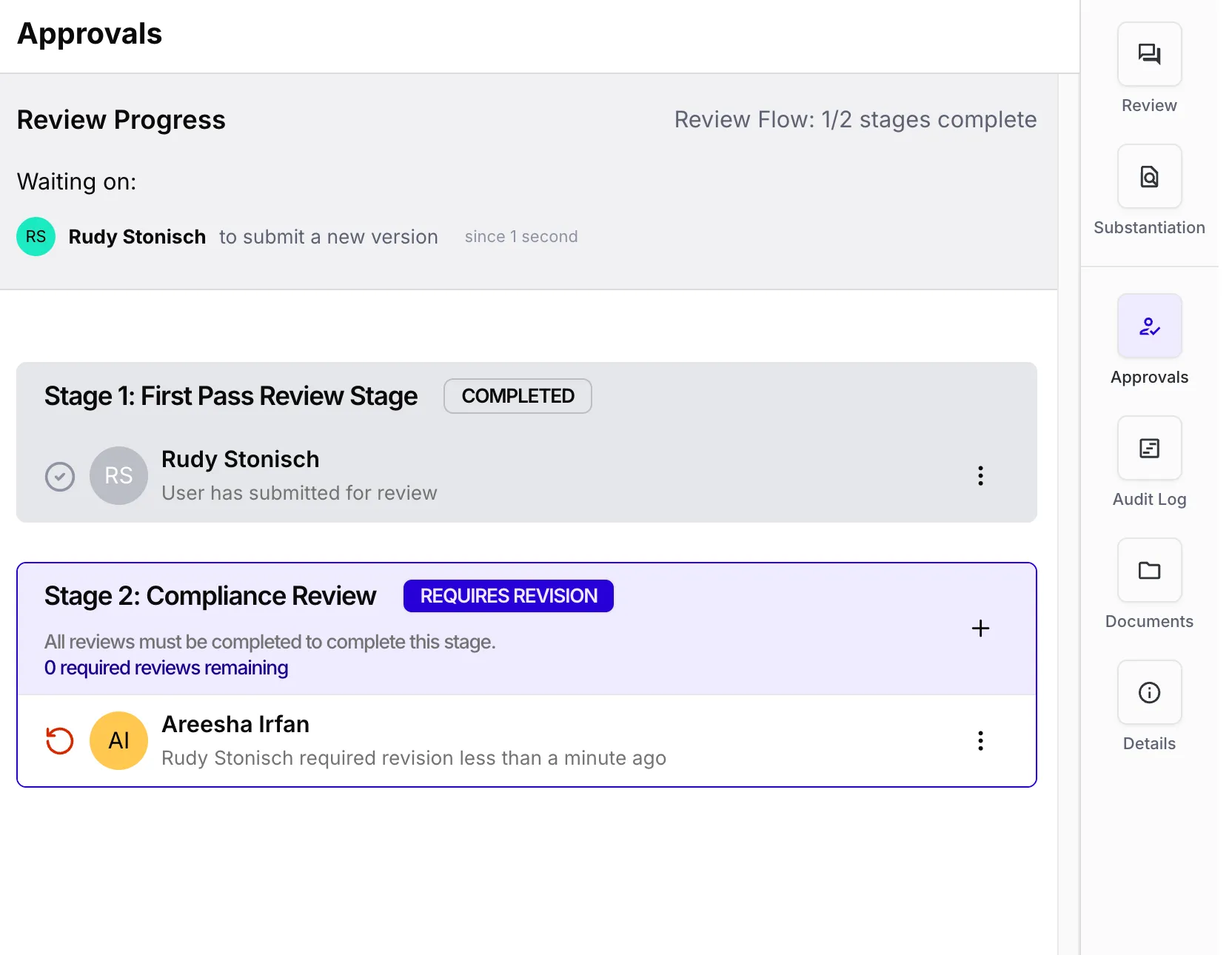
You may track a submission any time by selecting the Approvals tab of the submission. Here you can view the review stage the submission is in and the assigned reviewer.
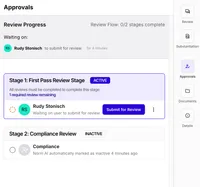
First Pass Review
First Pass Review is the first stage after a submission is uploaded. During this stage, Norm’s agents analyze the content and generate comments within the platform. The submitter reviews the feedback, makes revisions, and uploads an updated version before the document moves to Compliance. This early step improves draft quality and shortens the formal approval process.
Review Tab
The Review tab contains both regulatory-driven feedback and disclosure feedback.
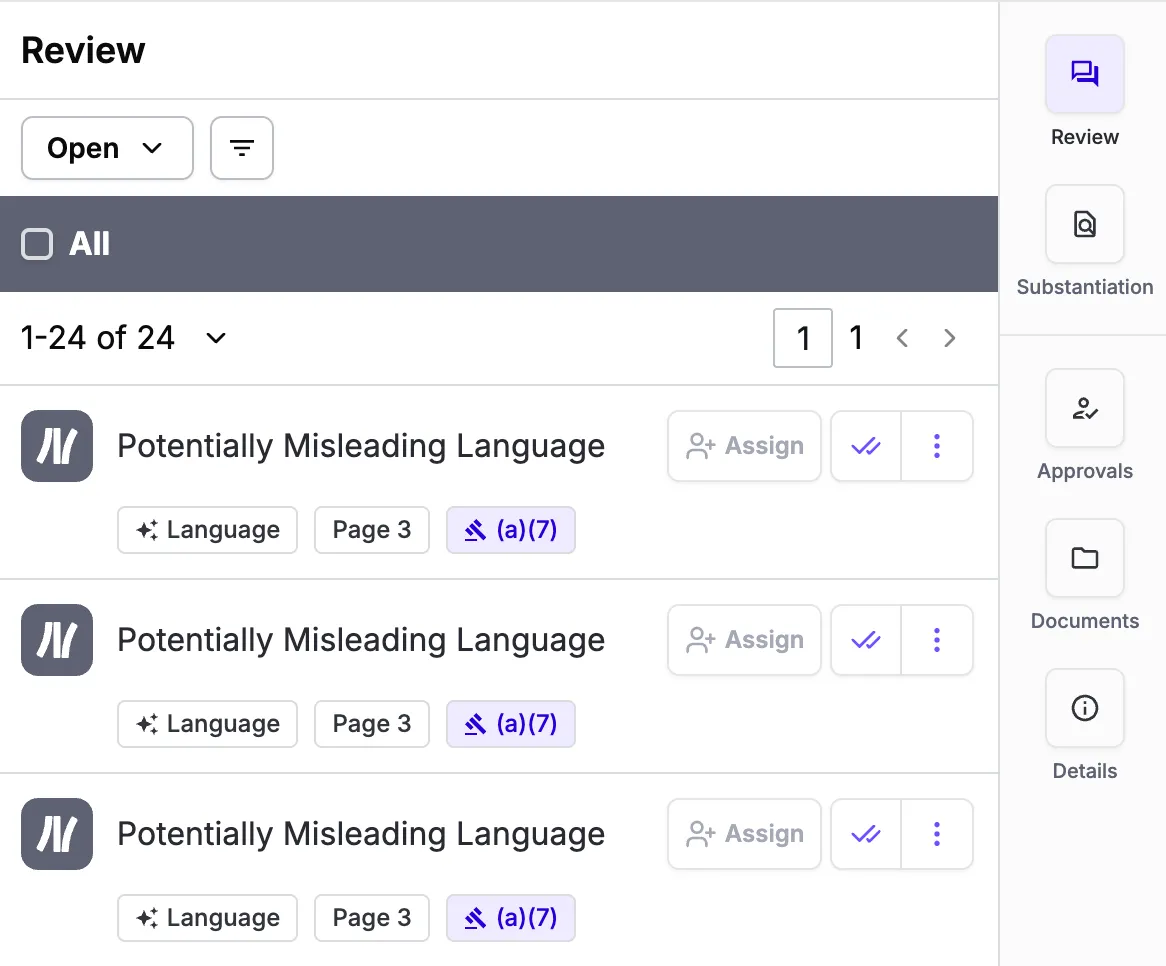
Understanding Feedback Types
All feedback in the Review tab is clearly color-coded and labeled to distinguish between:
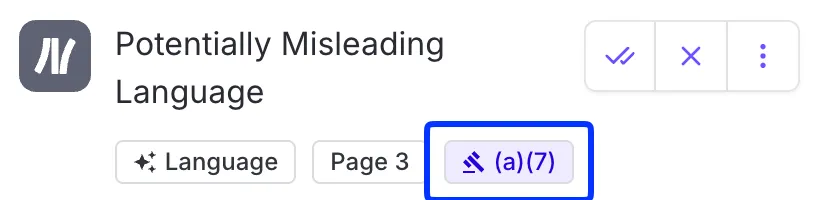
- Regulatory Review comments – Compliance feedback grounded in the regulatory policies enabled in your Norm platform.
- A purple tab will appear indicating the specific section of the regulation associated with the AI agent comment
- Disclosure comments – Required or matched disclosures from your firm's/policy’s Disclosure Library
Regulatory Review Comment
Disclosure Comment

Types of Regulatory Review Comments
There are three types of Regulatory Review comments:
Revision Comments – Content that needs additional information or requires a more substantive change (e.g., missing footnotes, cherry-picked performance, unbalanced claims).

Language Comments – Content where wording needs to be edited to remove exaggerated or non-compliant claims (e.g., "leading investment" or "guaranteed outperformance").

Reviewer Comments – Custom comments left by the reviewer.

Types of Disclosure Feedback
Exact Match
Indicates the agent has confirmed that the identified disclosure in the submission is a verbatim match to the disclosure language found in the Disclosure Library.

Approximate Match
Indicates the agent has confirmed that the identified disclosure is worded closely to what is found in the Disclosure Library but is not an exact match. The disclosure approximately matches the language in the Disclosure Library.

Missing
The agent has identified where a disclosure is needed based on a triggering excerpt found within the submission. In these cases, the agent will provide the needed disclosure text from the Disclosure Library that must be added to the source document.

Actioning AI Agent/Reviewer Comments
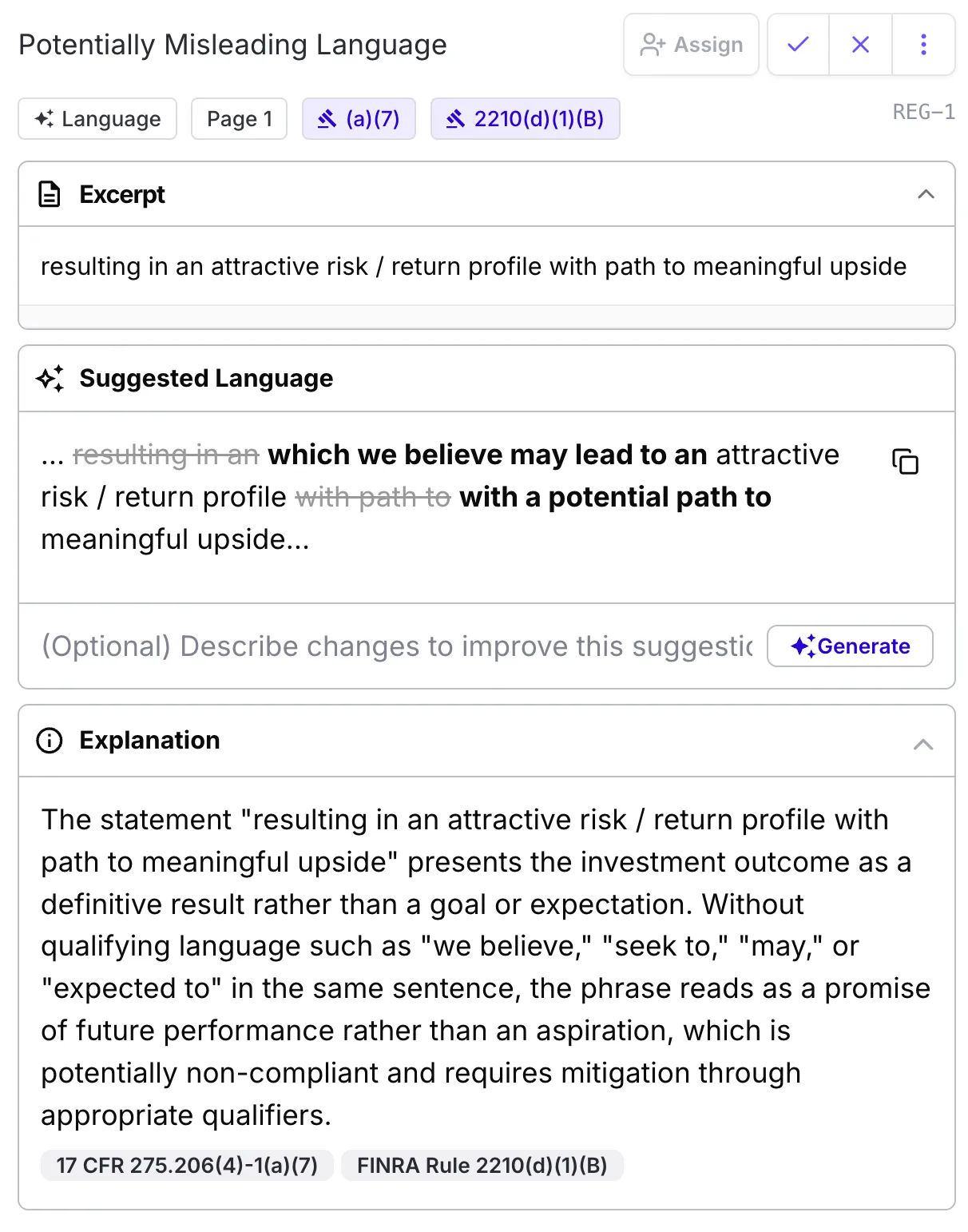
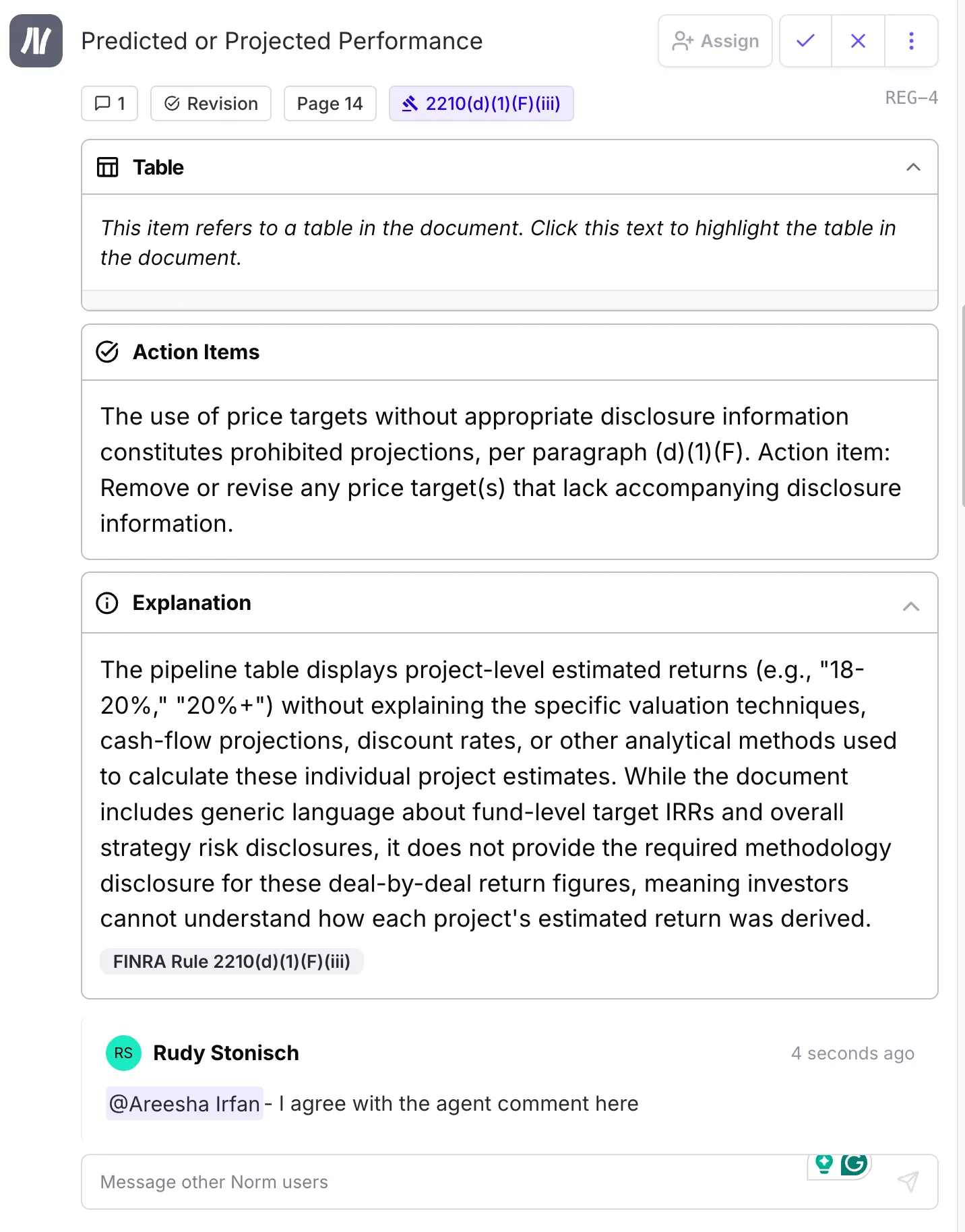
1. Open Each Comment
Click into the comment displayed in the task panel.
2. Review the Excerpt, Action Items, and Explanation
The Excerpt section highlights the exact portion of the content that's been flagged.
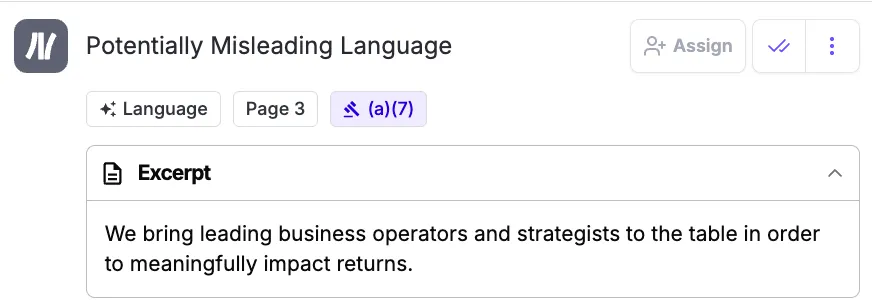
💡Tip: Click the excerpt to be automatically routed to the relevant section in your document. |
|---|
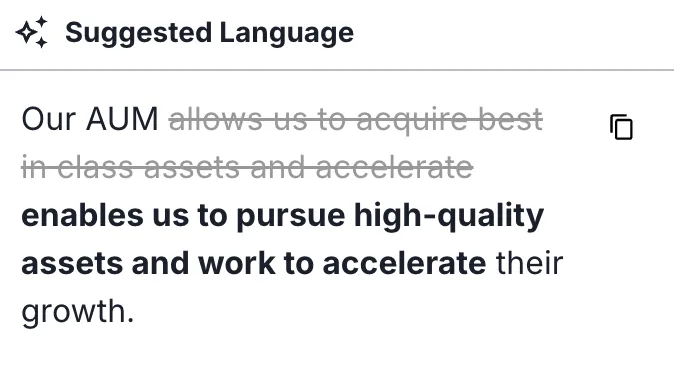
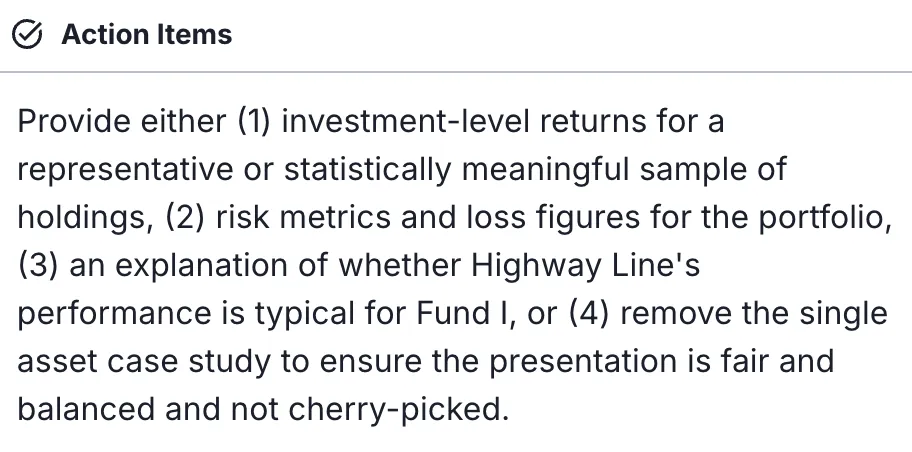
The Action Items/Suggested Language section outlines the suggested steps to revise the content to ensure compliance.
The Explanation section provides the regulatory rationale behind the AI Agent's comment.
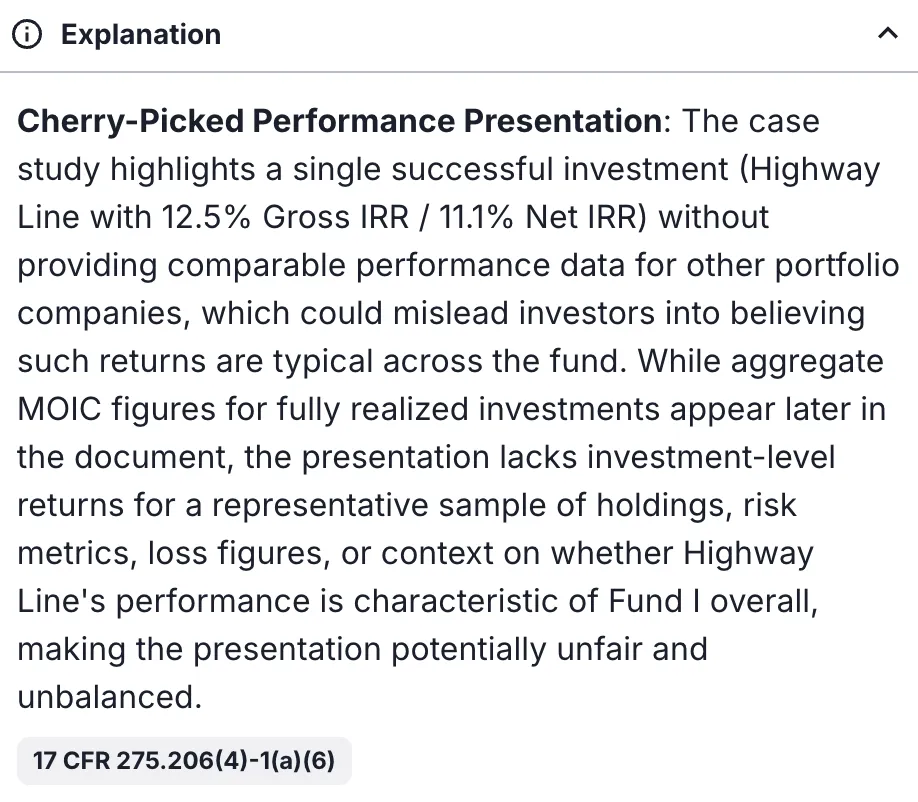
This includes:
- The specific regulatory rule being referenced
- Why the excerpt violates or conflicts with that rule
- Context to help reviewers understand the regulatory basis for the required change
💡Tip: Click the rule tag at the bottom of the Explanation to be automatically routed to the specific article and section the regulatory AI agent is referencing. 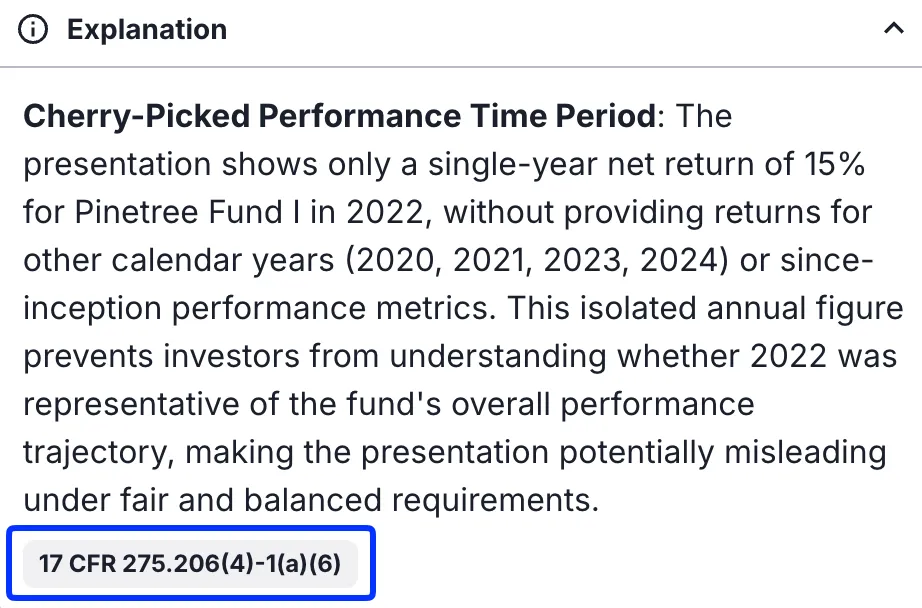 You can also click the blue tag displayed in the agent comment. 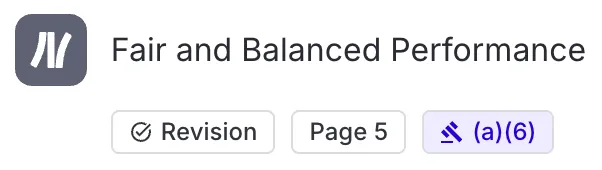 |
|---|
3. Take Action on Each Comment
After reviewing the Excerpt, Action Items, and Explanation:
- Determine whether the Agent's feedback is valid
- If valid, edit the content in its format to match the feedback from the reviewer / AI Agent.
- Optional: Mark as Actioned – moves the AI Agent comment to an Actioned state. Reviewer can see the comment has been actioned
💡Note: Norm does not allow direct editing of documents inside the platform. |
|---|
- Optional: Add replies to the bottom of AI Agent comments.
Filtering Review Feedback
To help organize and prioritize your review, you can filter feedback by category using the filter dropdown at the top of the Review tab.
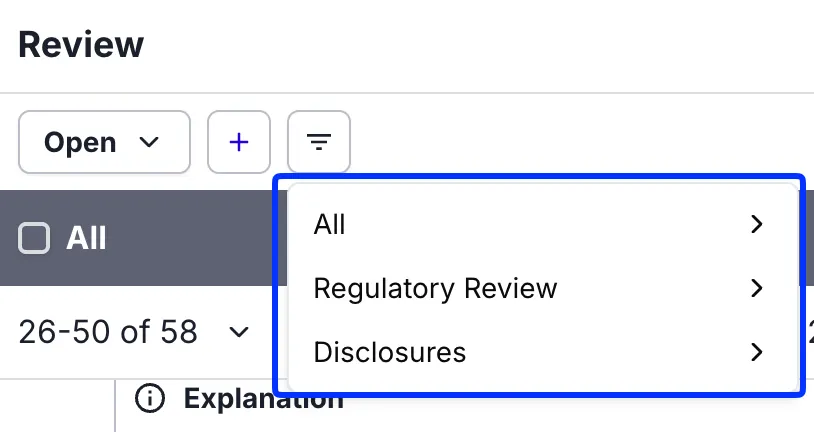
Filter Options:
All – Shows all regulatory and disclosure feedback
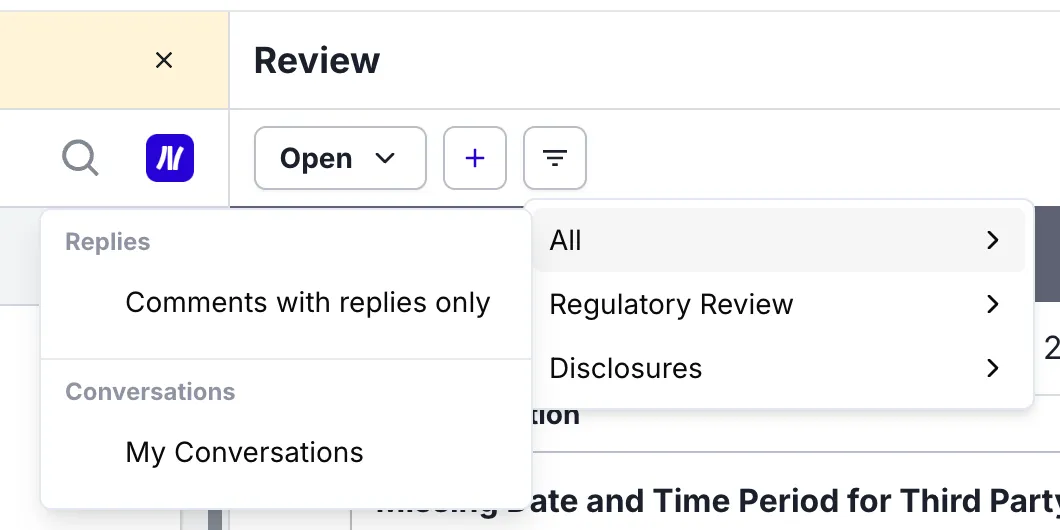
💡Tip: Select “My Conversations” to show all comments and replies that have your name tagged. 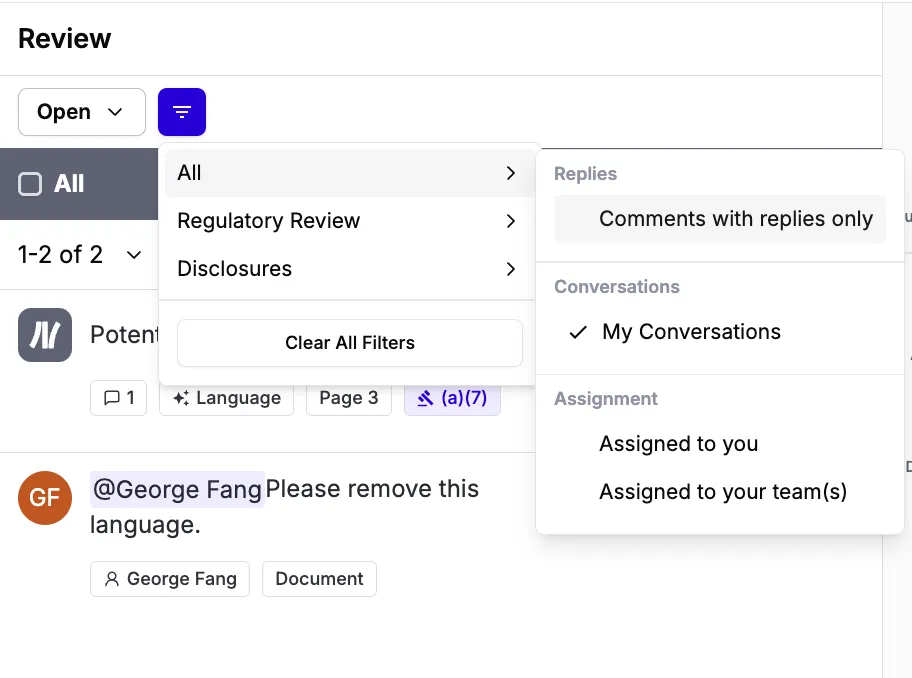 |
|---|
Regulatory Review – Shows only compliance-driven comments, with sub-filters for:
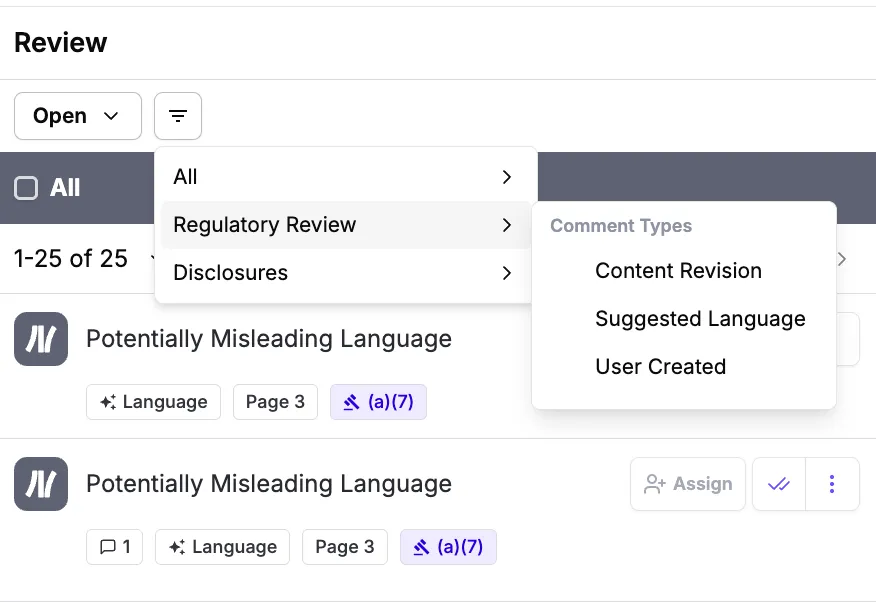
- Revision Comments
- Language Comments
- Reviewer Comments
Disclosures – Shows only disclosure-related feedback, with sub-filters for:
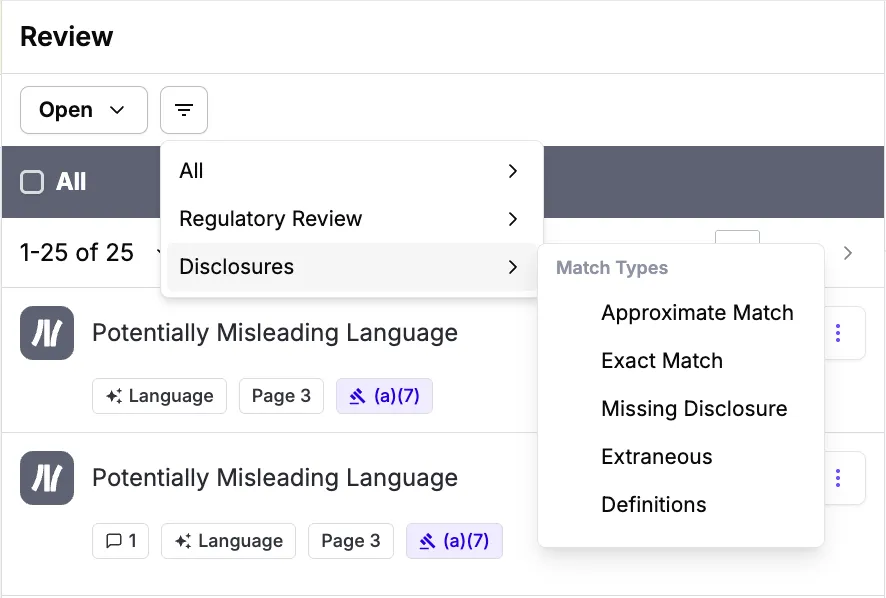
- Exact Match
- Approximate Match
- Missing
- Definitions
Upload New Version
Once you’ve incorporated the agent feedback, select Upload New Version to upload a revised version for review by Compliance.
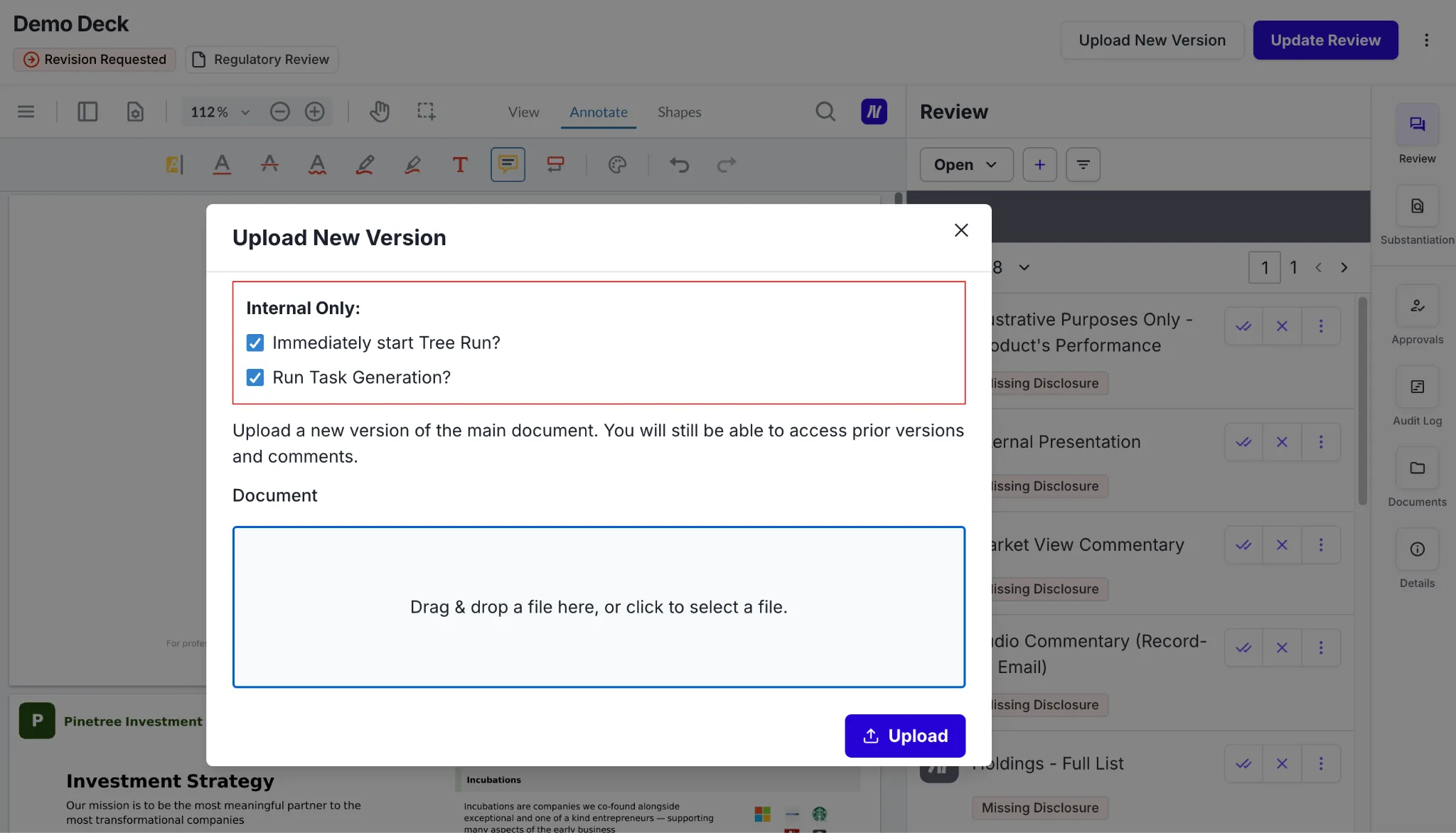
The review page will automatically refresh into AI Agent review and notify the reviewer once feedback is available.
If an additional revision is requested by Compliance, you will be notified. Otherwise, continue tracking the submission for approval.
Once approved, you will receive a notification, and the submission will be locked.
Ready for Revision
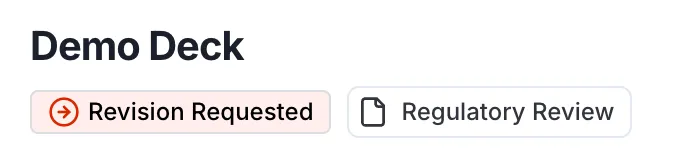
If a submission requires edits, the Compliance team will request a revision. You will receive a notification and an email once a submission has been returned for revision. Open the submission to review feedback.
The right-hand navigation bar displays a variety of available tabs.
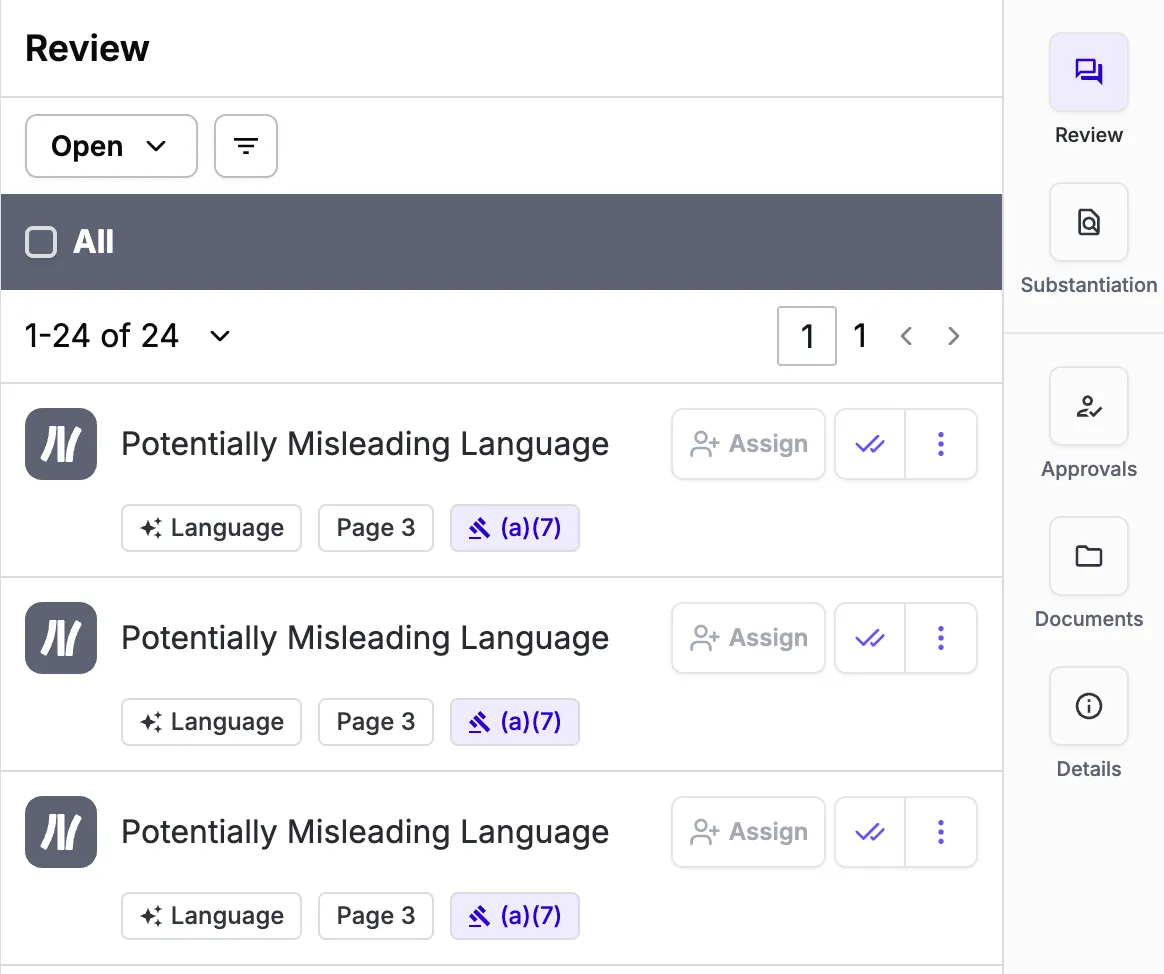
Review the open items in the Review Tab and incorporate the changes.
Additional Tabs on the Right Side
Approvals Tab
Shows the review stage, assigned reviewers, and upcoming steps. Admins can assign additional reviewers here.
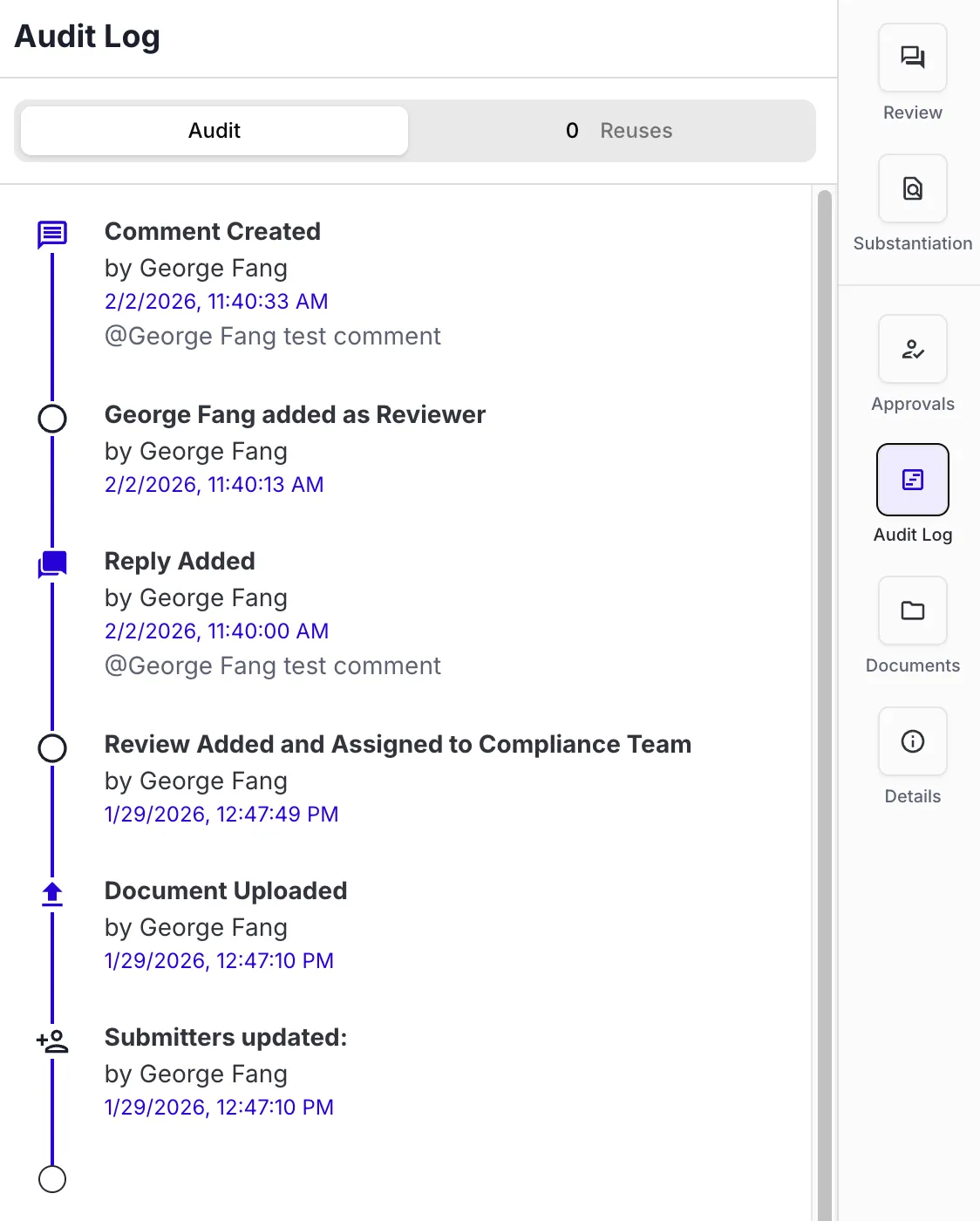
Audit Log
Tracks the full history of reviewer and submitter actions.
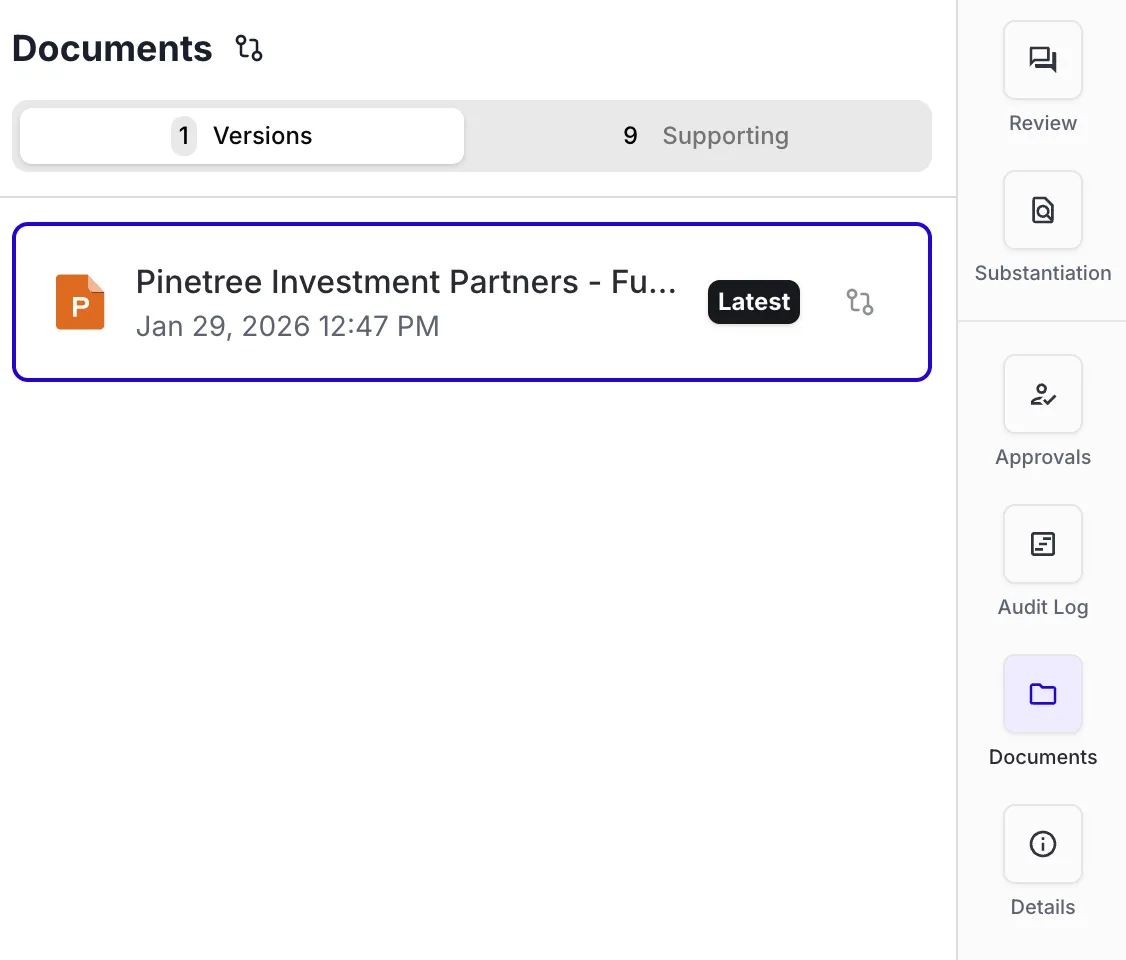
Documents Tab
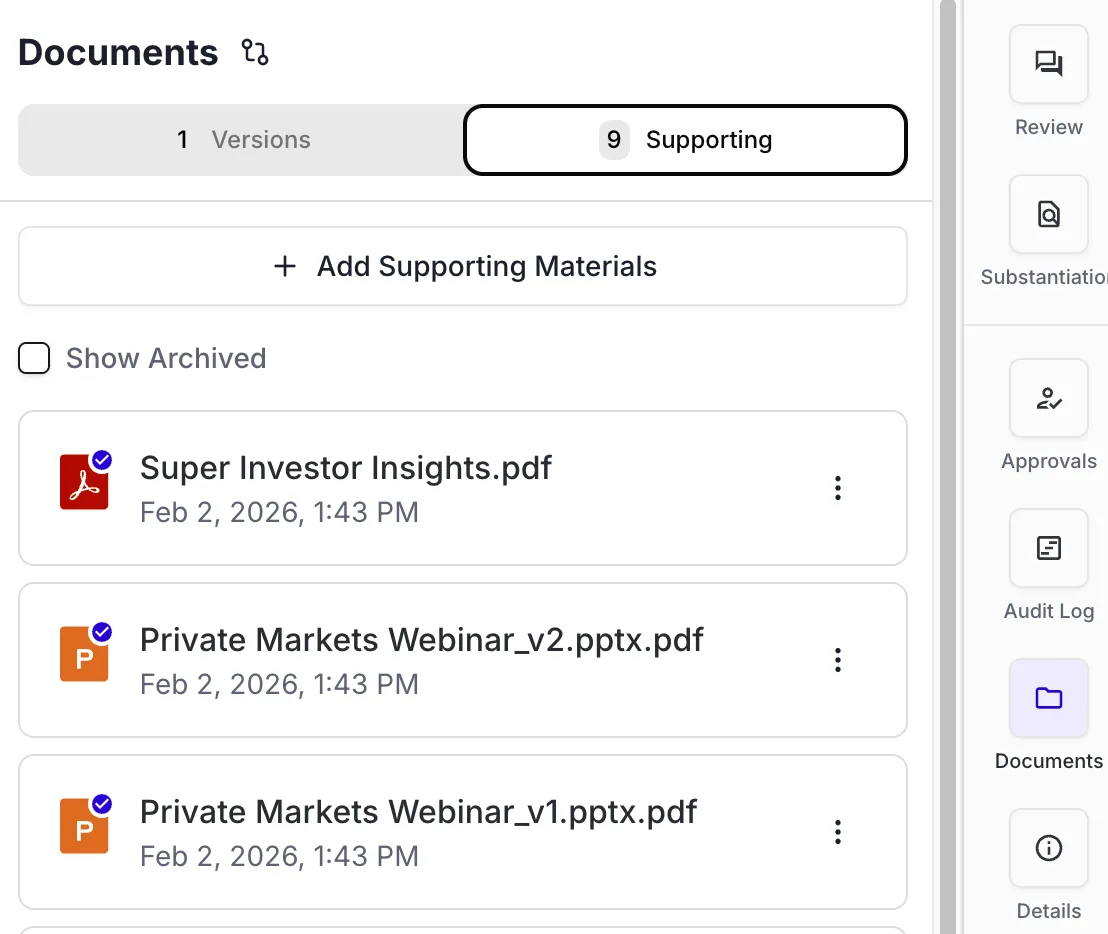
Shows all historic versions and supporting materials.
Details Tab
Shows submitter info, reviewer info, and intake form values.