How to Save PowerPoints and Word Documents with Fonts Embedded
2 min
If you are uploading a PowerPoint of Word Document to Norm Ai, you'll want to make sure that the file is saved with fonts embedded to ensure that the presentation looks the same in the Norm Ai platform.
PowerPoint Steps:
- Open your PowerPoint file in the desktop app (Windows).
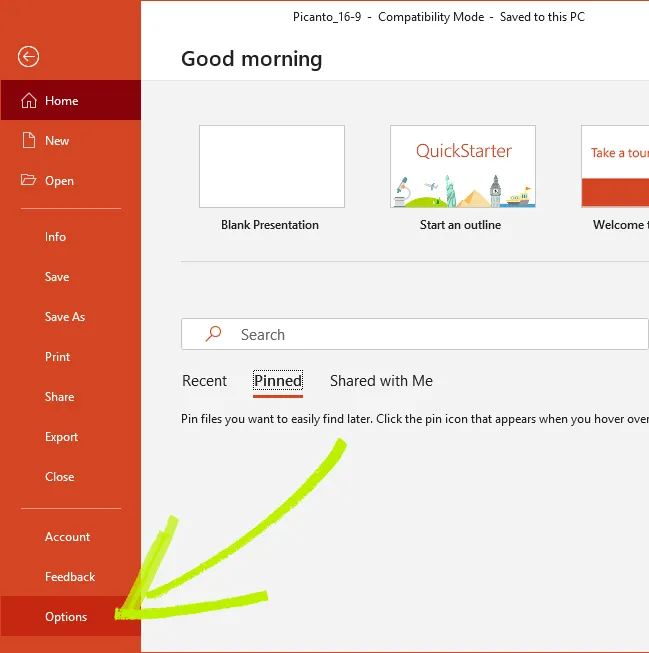
- Click File → Options.
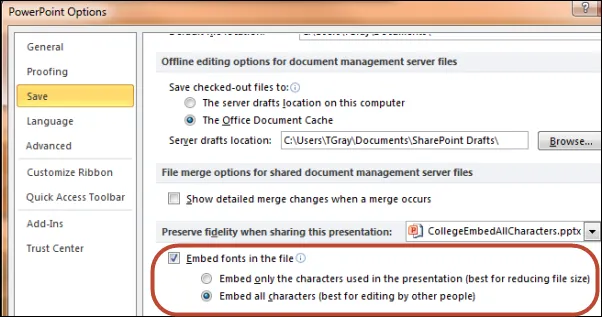
- In the PowerPoint Options window, select Save from the left-hand menu.
- Scroll down to the section labeled Preserve fidelity when sharing this presentation.
- Check the box labeled: Embed fonts in the file
- 🔘 Embed all characters (better if someone else will be editing the file)
- Click OK to save your settings.
- Now, save your file as usual by clicking File > Save or Ctrl+S.
Word Document Steps:
- Open your Word Document in the desktop app (Windows).
- Click on File in the top left corner.
- Select 'Options' at the bottom of the left-hand menu.
- In the Word Options window, select 'Save' from the left-hand pane.
- Scroll down to the section labeled 'Preserve fidelity when sharing this presentation'.
- Check the box labeled: Embed fonts in the file
- 🔘 Embed all characters (better if someone else will be editing the file)
- Click OK to save your settings.
- Now, save your document as usual by clicking File > Save or Ctrl+S.